With piped text, survey creators can customize question and answer choices based on the respondent's answer in the previous question. They need to use a code in the survey. If a question has a piping text configured for it, it will save the response as piped text.
Piping using a variable:
Piping text can be carried over to the immediate next page with the help of a piping variable. If you want to carry over text to multiple pages, you will need to use custom variables/question code syntax. When respondents take the survey, the piping text will be replaced with the specified content.
Piping using the question code:
To pipe the answer options of the questions, you can use Question_Code syntax. The option that will be selected in that specific question will get replaced with the question code syntax.
Note: The page breaker is necessary to make this code work properly.
Example of piping text
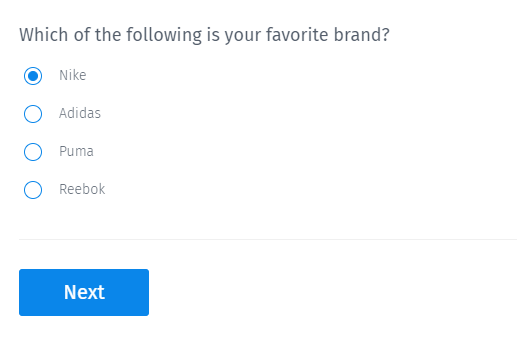
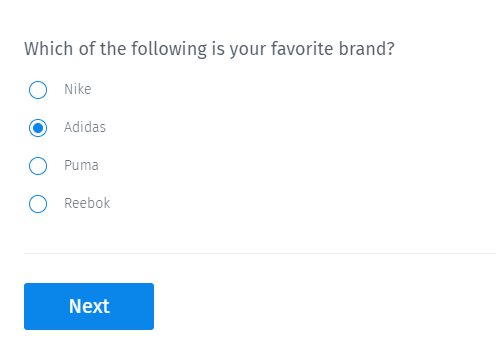
Consider a multiple-choice question that asks respondents to choose their favorite brand.

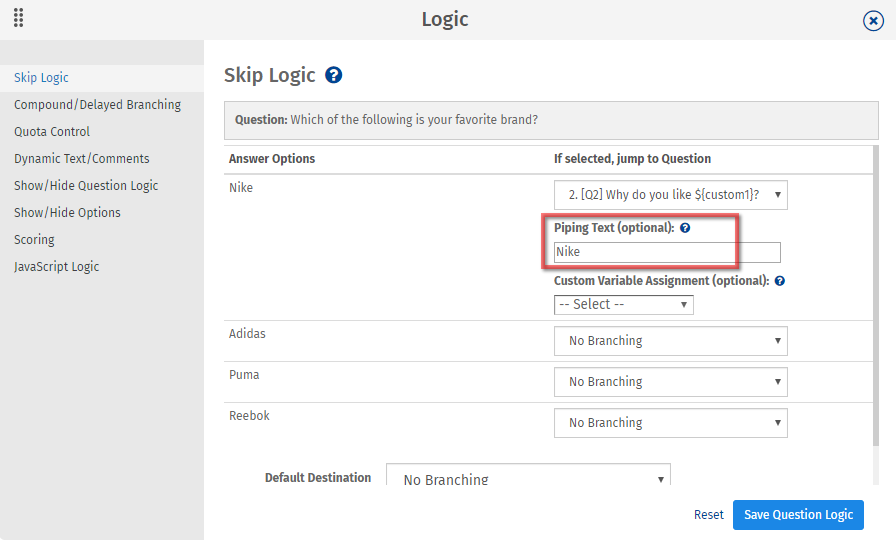
If you want to pass the answer selected by the respondents to the next question, set the answer option as the piping text.
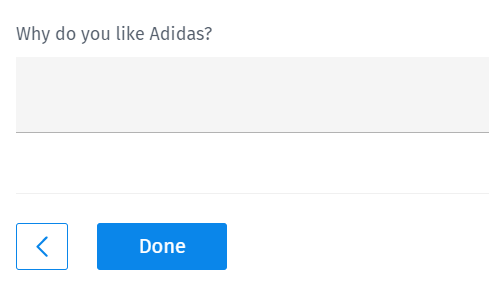
Use the code for piping text in a different question. When the respondent moves to that question, the code will be replaced with the text stored in it.
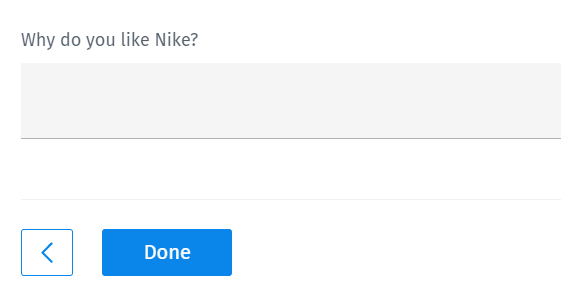
On selecting “Nike” as the option, the code will be replaced with the text.
Example of piping with question code syntax
If you want the selected option from the Q1 question to appear in the Q2 text, use the ${Q1} question code syntax in the Q2 question. Also please note, page breaker is necessary to make this code work properly. Text piping with question code will only if the destination question is on a later page.
With question code, you need not set piping text for all answer options in Q1. Whatever option you choose, will be displayed in Q2.
Uses of piping text
Piping text can be used in the question text, answer option, or logic.
Question text: Piped text can be used in subsequent questions to replace the code with the text. Market researchers can use this feature to give the impression that questions relevant to respondents are being asked.
Answer option: Text piping can be used as an answer option in the subsequent questions. It is useful when you want respondents to make a choice between various options. Suppose you ask them to select one of the four local brands. If the respondent selects brand A, then you can pipe text of this option. Use this text as an answer option to compare brand A with global brands.
Logic: Piping text can be used while applying skip logic. You can set a destination question and pass the answer option of the source question as piped text to be used in that question.
Note: To apply piping or to pipe the text from one question to another, skip logic is necessary.
Advantages of piping text
Programmed survey: Piping adds a certain kind of programming to your survey questions. You can pass text to a different question based on the respondent's selection.
Reusable text: As the piped text is stored in a variable that can be used in the same survey, it reduces the need to type the text again. Such coding also simplifies the design of the questionnaire.
Personalized experience: Piping text offers a dynamic and personalized experience to the survey takers. When respondents see their answer option as part of the subsequent question or answer, they feel as if the questionnaire is tailored for them.
How to set up text piping in your surveys?
Learn how to set up and use this feature with our help file on Text Piping.

 Survey Software
Easy to use and accessible for everyone. Design, send and analyze online surveys.
Survey Software
Easy to use and accessible for everyone. Design, send and analyze online surveys.
 Research Suite
A suite of enterprise-grade research tools for market research professionals.
Research Suite
A suite of enterprise-grade research tools for market research professionals.
 CX
Experiences change the world. Deliver the best with our CX management software.
CX
Experiences change the world. Deliver the best with our CX management software.
 Workforce
Create the best employee experience and act on real-time data from end to end.
Workforce
Create the best employee experience and act on real-time data from end to end.